

Getting the Most Out of Your New Apple Watch: Your Step-by-Step Guide
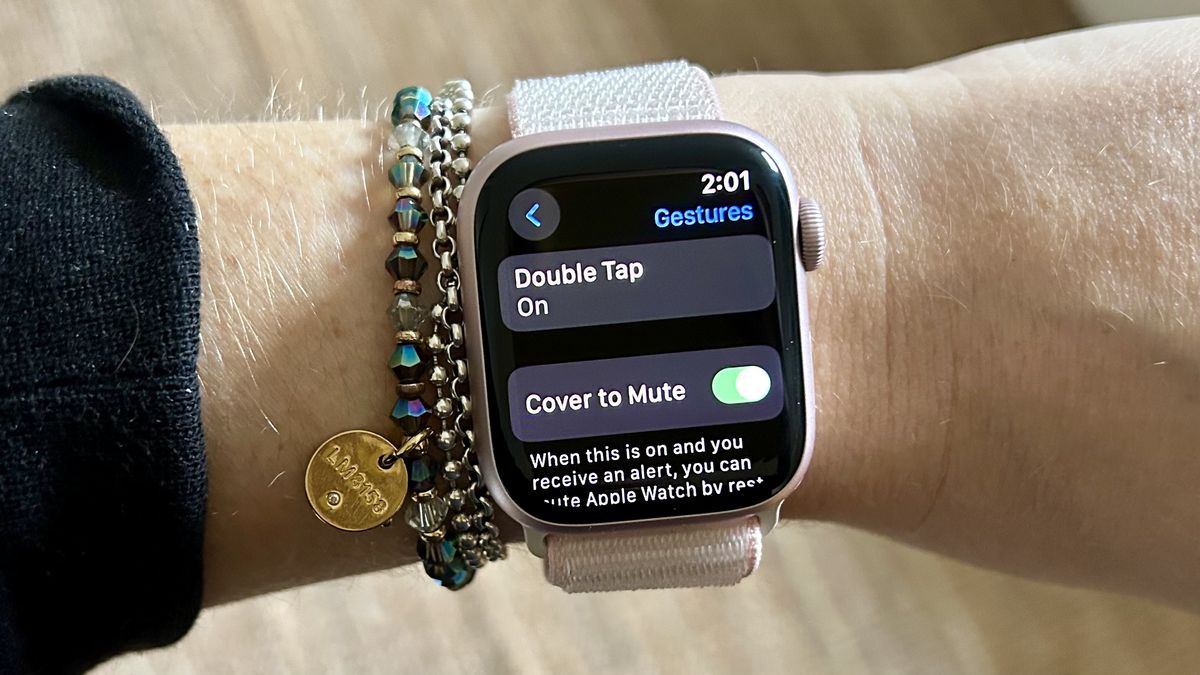
Receiving a new Apple Watch during the holidays is an excellent gift for anyone looking to stay on top of their health, activities, and simply own a stylish and functional wrist gadget. This device lets you track your movements, get instant notifications from https://www.woocasino.com, and even pay without your phone or credit card. Let’s explore how to set up your watch to maximize its benefits, track your health, and customize notifications to suit your needs.
Step 1: Setting Up Activity Rings
At the core of the Apple Watch experience for many is its fitness functionality. The watch features three rings that help you monitor daily activities:
- Red (Move): Tracks your personal daily goal for active calories burned.
- Green (Exercise): Closes after 30 minutes of intense activity.
- Blue (Stand/Roll): Encourages movement for at least one minute in 12 different hours of the day.
You can adjust these goals to match your fitness level or workout plan:
- Open the “Activity” app directly on your Apple Watch.
- Scroll down and select “Change Goals.”
- Set your desired targets using the “+” or “-” buttons or the Digital Crown.
- Press “OK” to confirm.
The minimum Exercise duration can be reduced to 10 minutes, while the maximum is 60 minutes. The Stand goal can be adjusted from 6 to 16 hours per day. Later, in the “Fitness” app on your iPhone, you can customize your schedule, choose “rest days,” or pause tracking entirely if you need a break.
Step 2: Customizing Watch Faces and Apps
The watch face is the heart of your Apple Watch, as it’s what you see most often. To customize it:
- Open the “Watch” app on your iPhone.
- Go to the “Face Gallery” tab to browse all available watch face styles.
- Choose your favorite design and add it to your collection.
- Customize colors, number styles, and add “complications” — useful widgets like weather, calendar, music, activity metrics, etc.
To quickly switch between watch faces, swipe left or right on your Apple Watch screen.
The Apple Watch has its own App Store. Press the Digital Crown, select the App Store icon on your watch, and download apps directly from watchOS. Alternatively, you can install apps via the “Watch” app on your iPhone under App Store. You can also personalize your device with a variety of Apple Watch bands to suit your style and comfort.
Step 3: Sharing Activity
One of the best features of the Apple Watch’s fitness capabilities is the ability to share your progress with others, motivating both yourself and your friends:
- Open the “Fitness” app on your iPhone.
- Tap the “Sharing” icon in the bottom right corner.
- Press “+” to add a friend or colleague.
- Select a contact who also has an Apple Watch (their name will turn red) and send a request.
Once they accept, you can see their efforts in real time: when they finish a workout, how many steps or calories they’ve burned, and the awards they’ve earned. You can also compete in weekly challenges, adding a fun competitive edge to your fitness goals.
Step 4: Health Monitoring and Emergency Features
The Apple Watch isn’t just for tracking activity—it also passively monitors your health in the background.
Fall Detection
The Fall Detection feature uses the accelerometer and gyroscope to detect sudden falls. If the watch detects a fall, it will ask if you’re okay:
- Open the “Watch” app on your iPhone.
- Select “Emergency SOS.”
- Enable “Fall Detection.”
If you’re into sports, excessive movements might trigger false alarms. However, in the event of a genuine fall, if you don’t respond within 20 seconds, the watch will automatically call emergency services and share your location.
Heart Rate Monitoring
The Apple Watch includes several heart health features:
- ECG (for Series 4 and newer): Measure an electrocardiogram directly from your wrist.
- Cardio Fitness: Track your cardio fitness level, a key indicator of overall health.
- Irregular Rhythm: Receive notifications about potential signs of atrial fibrillation.
- High/Low Heart Rate Notifications: Set alerts for unusually high or low heart rates.
To enable these features, open the “Watch” app on your iPhone and navigate to the “Heart” section.
Crash Detection
This feature, available on Apple Watch Series 8 and newer, detects severe car accidents like front, side, or rollover collisions. If the watch recognizes such an event, it will prompt you to call emergency services. If you don’t respond, it will automatically call local rescue services after 20 seconds.
Step 5: Managing Notifications and Settings
The Apple Watch allows you to quickly respond to notifications, but too many can be distracting. To organize them:
- Open the “Watch” app on your iPhone.
- Select “Notifications.”
- Choose which apps can send notifications to your Apple Watch.
It’s recommended to keep notifications to a minimum to avoid constant vibrations and sounds. For complete silence and reduced distractions, enable “Do Not Disturb” or “Focus” mode.