

Retrieving Data. Wait a Few Seconds and Try to Cut or Copy Again 2026
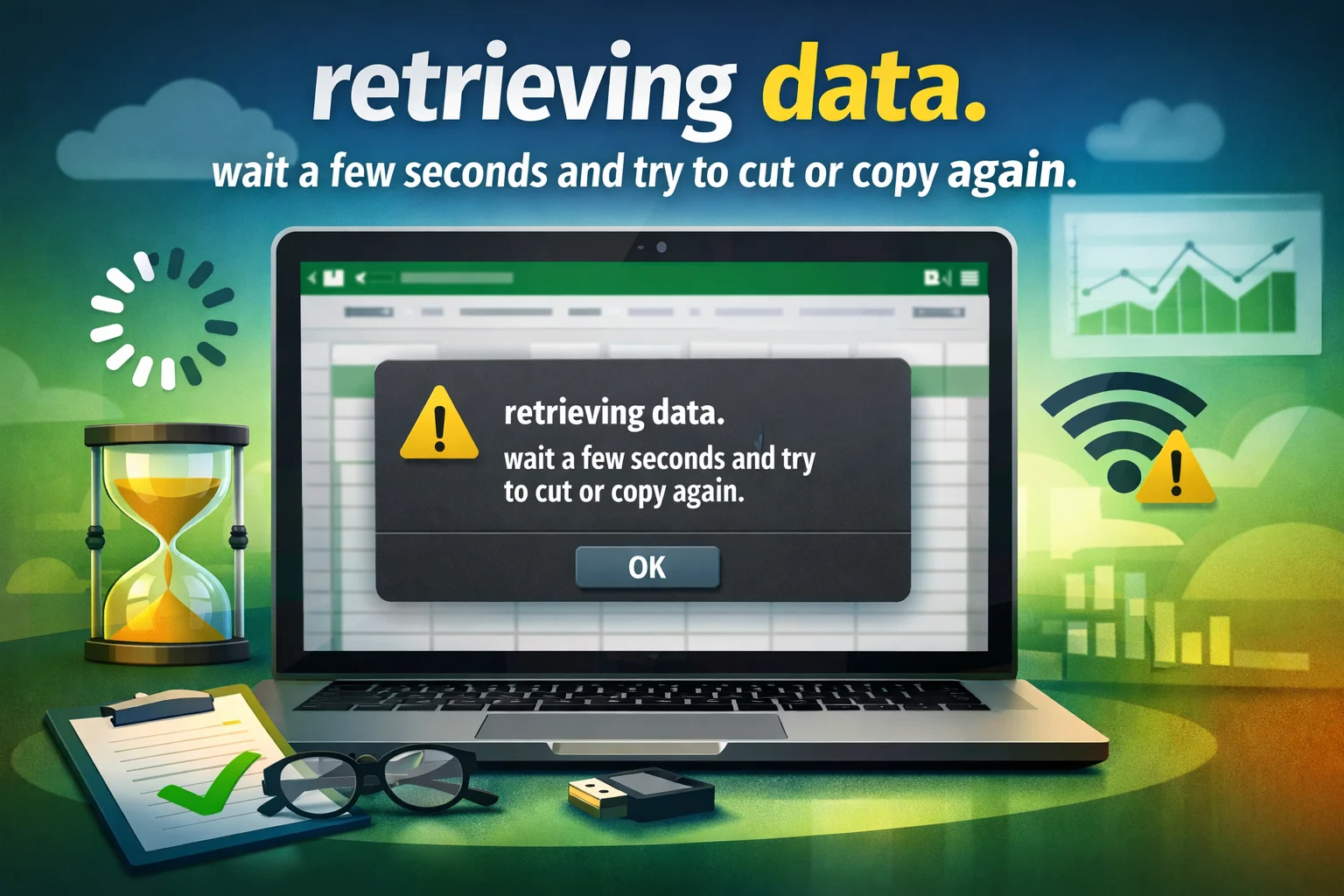
“Retrieving data. Wait a few seconds and try to cut or copy again” is one of the most frustrating errors Excel users face in 2026. It stops your workflow cold, blocks copy and paste, and shows up without warning — usually when you are in the middle of something important.
This error appears primarily in Excel Online, Microsoft 365, and files stored on OneDrive or SharePoint. It is not a sign your computer is broken. It is a cloud synchronization issue, and it is completely fixable.
What Does “Retrieving Data. Wait a Few Seconds and Try to Cut or Copy Again” Mean?
This error message appears inside the Excel window itself — not as a popup. It replaces the data you expected to paste.
It means Excel is trying to fetch your copied data from Microsoft’s cloud servers but cannot complete the retrieval in time. The clipboard operation gets blocked while the sync catches up.
Unlike a local copy-paste, Excel Online does not store copied data on your computer’s clipboard directly. It routes through browser cache and Microsoft’s OneDrive sync infrastructure first.
Why Does This Error Happen? (Technical Explanation)
When you press Ctrl+C in Excel Online, the copied data does not go straight to your local clipboard. It is temporarily stored through your browser’s cache and validated against Microsoft’s cloud server.
If anything in that chain — your internet connection, browser cache, OneDrive sync, or authentication token — fails or lags, Excel cannot retrieve the copied data when you try to paste it.
The result is the “Retrieving data. Wait a few seconds and try to cut or copy again” message. Even if you wait, the data may have already expired from the cache, which is why repeated paste attempts often fail.
Where Does This Error Appear?
Understanding which environment triggers this error helps you apply the right fix faster.
| Environment | Error Frequency | Primary Cause |
|---|---|---|
| Excel Online (browser) | Very High | Cloud clipboard sync delay |
| Excel Desktop (OneDrive file) | High | AutoSave background sync |
| Excel Desktop (SharePoint file) | High | Network latency + sync |
| Excel Desktop (local file) | Low | Clipboard history conflict |
| Excel Online (formula copy) | Very High | Formula validation sync |
| Co-authoring / multi-user | High | Conflicting sync sessions |
The error is most common in Excel Online and in desktop Excel when the file is saved to OneDrive or SharePoint.
Top 8 Causes of This Error
Cause 1: Cloud Clipboard Sync Delay
When you copy data in Excel Online, the data travels from your browser to Microsoft’s servers and back. Any network delay breaks this handshake.
Your browser holds the copied data in a temporary cache token. If the sync does not complete before you paste, the token expires and the error appears.
This is the single most common root cause of the “Retrieving data. Wait a few seconds and try to cut or copy again” error.
Cause 2: Unstable or Slow Internet Connection
Excel Online depends entirely on a live, stable internet connection during copy-paste operations. Even a brief Wi-Fi dropout causes the clipboard token to break.
A slow connection is just as problematic. If your download or upload speed drops, the sync between your browser and OneDrive lags, triggering the error.
Switching from Wi-Fi to a wired (ethernet) connection often eliminates the error immediately for users on unstable wireless networks.
Cause 3: Browser Cache Corruption
Your browser stores temporary files from Excel Online. Over time, these cached files become outdated or corrupted.
When Excel Online tries to use stale cache data during a copy operation, the retrieval fails. The browser hands Excel an invalid or expired clipboard session.
Clearing your browser cache is one of the most reliable and fastest permanent fixes for this error.
Cause 4: AutoSave Triggering During Copy
This cause is frequently missed. When you work on a file saved in OneDrive or SharePoint with AutoSave enabled, Excel continuously syncs changes to the cloud.
If AutoSave triggers a background sync at the exact moment you press Ctrl+C, it interrupts the clipboard token that Excel Online needs. The clipboard gets blocked and the error fires.
Temporarily turning off AutoSave before a large copy-paste operation often resolves this immediately.
Cause 5: Large Datasets or Complex Formulas
Excel Online has a limited memory buffer in your browser. When you try to copy thousands of rows, many columns, or cells packed with complex formulas, the browser cannot transfer all that data fast enough.
Excel responds by asking you to wait — but the wait is often longer than the error message implies. The clipboard operation times out before the data can be transferred.
Copying smaller ranges or using Paste Values instead of full paste reduces this problem significantly.
Cause 6: Browser Extensions Interfering
Ad blockers, clipboard managers, password managers, and other browser extensions can interfere with how Excel Online accesses your clipboard.
Some extensions intercept clipboard events and block them from reaching the web app. This causes Excel Online to report the “Retrieving data” error even when your network is fine.
Opening Excel Online in an Incognito or InPrivate window — where extensions are disabled by default — is the fastest way to confirm if an extension is to blame.
Cause 7: Outdated Browser or Excel Version
Older browsers may not fully support the clipboard API that Excel Online relies on. Internet Explorer and older versions of Microsoft Edge are especially prone to this error.
Similarly, an outdated desktop Excel installation may have bugs in how it handles files synced from OneDrive or SharePoint. Microsoft has released patches addressing clipboard sync issues over the years.
Always use the latest version of Chrome or Edge (Chromium), and keep Excel updated through File > Account > Update Options.
Cause 8: Windows Clipboard History Conflict
Windows 10 and 11 include a Clipboard History feature (activated with Windows + V). When clipboard history is enabled, it can conflict with Excel’s internal clipboard management.
Multiple applications writing to clipboard history simultaneously can confuse Excel’s copy operation. The result is a failed retrieval when you try to paste.
Clearing clipboard history or disabling it temporarily often resolves the error for desktop Excel users.
All Fixes: From Quickest to Most Permanent
Fix 1: Deselect, Wait, and Re-Copy (Quickest Fix)
This is the first thing to try and it works a surprising amount of the time.
Click any empty cell to deselect your current selection. Wait 10–15 seconds, then reselect your data and press Ctrl+C again. Try pasting immediately after.
This gives the Excel sync process time to complete and refreshes the clipboard token so the data can be retrieved cleanly.
Fix 2: Clear Browser Cache and Cookies
This is the most effective fix for users who see this error repeatedly.
In Chrome: Press Ctrl + Shift + Delete. Set the time range to “All time.” Check only “Cached images and files.” Click “Clear data.” Restart Chrome and reopen your Excel file.
In Edge: Press Ctrl + Shift + Delete. Select “All time.” Check “Cached images and files” and “Cookies and other site data.” Click “Clear now.” Restart Edge and try again.
After clearing cache, sign back into Office.com and reopen your file. The error should be gone if cache corruption was the cause.
Fix 3: Turn Off AutoSave During Copy-Paste

Open the workbook in Excel Desktop (not the browser). Look at the top-left of the ribbon for the AutoSave toggle. Switch it to Off.
Now try your copy-paste operation. In most cases, the “Retrieving data. Wait a few seconds and try to cut or copy again” error disappears immediately.
Once you finish copying, you can turn AutoSave back on. This is especially useful during large data moves in OneDrive or SharePoint files.
Fix 4: Download and Use the Excel Desktop App
This is the most reliable workaround for persistent cases.
In Excel Online, go to File > Save As > Download a Copy. Open the downloaded file in your local Excel Desktop application. Perform all cut, copy, and paste operations from the desktop app.
The desktop version uses your local clipboard directly without cloud sync during copy operations. The “Retrieving data” error cannot occur in this offline mode.
Fix 5: Switch to a Different Browser
If you use Internet Explorer or older Edge, switch to Google Chrome or Firefox immediately.
The “Retrieving data. Wait a few seconds and try to cut or copy again” error is disproportionately reported on Internet Explorer and legacy Edge. Chrome and Firefox handle clipboard APIs more reliably for Excel Online.
Install Chrome or Firefox, open the same file via Office.com, and test the copy-paste. Most users find the error stops appearing entirely.
Fix 6: Clear the Office Clipboard
Excel has its own internal clipboard that is separate from Windows. When it gets stuck or overloaded, it blocks new copy operations.
In Excel Desktop, go to the Home tab. Click the small arrow at the bottom-right of the Clipboard group to open the Clipboard pane. Click “Clear All.” Close the pane and try your copy-paste again.
This resets the internal cache and clears any stuck data that was blocking the retrieval loop.
Fix 7: Clear Windows Clipboard History
Press Windows + V to open Clipboard History. At the top right, click “Clear All.” Close the panel.
Now try your copy-paste in Excel again. Removing the accumulated clipboard history removes any conflicting data that Excel was struggling to manage alongside its own clipboard operations.
Fix 8: Open Excel in Incognito or InPrivate Mode
Press Ctrl + Shift + N in Chrome (or Ctrl + Shift + P in Firefox) to open a private browser window. Go to Office.com, sign in, and open your Excel file.
Try copying and pasting. If the error disappears in Incognito mode, one of your browser extensions is the cause. Go back to your normal browser and disable extensions one by one to identify the culprit.
Fix 9: Disable Excel Add-Ins
Add-ins running in the background can slow Excel’s processing and interfere with copy operations during cloud sync.
In Excel Desktop, go to File > Options > Add-ins. In the Manage box at the bottom, select “COM Add-ins” and click Go. Uncheck all add-ins and click OK. Restart Excel and try again.
If the error stops, re-enable add-ins one at a time to find the one causing the conflict.
Fix 10: Repair the Excel File
If the error appears with one specific file but not others, the file itself may be corrupted.
In Excel Desktop, go to File > Open. Browse to your file. Click the dropdown arrow next to the Open button. Select “Open and Repair.” Follow the prompts.
Excel will attempt to fix internal corruption that may be causing sync and clipboard issues with that specific workbook.
Fix 11: Update Excel and Your Browser
An outdated Excel build may have clipboard sync bugs that Microsoft has already patched.
In Excel Desktop, go to File > Account > Update Options > Update Now. Let Excel download and install any pending updates. Restart Excel.
Do the same for your browser. Chrome and Edge update automatically but you can force a check by going to Settings > About Chrome (or About Microsoft Edge).
Fix 12: Clear the Office File Cache
Excel Desktop caches files from OneDrive and SharePoint locally. If this cache becomes corrupted, it can cause persistent clipboard errors.
Close Excel completely. Navigate to: C:\Users\YourUsername\AppData\Local\Microsoft\Office\16.0\OfficeFileCache
Delete all files in that folder. Reopen Excel and your file. The cache will rebuild cleanly and the error should stop.
Complete Fix Priority Table
| Fix | Time to Apply | Fixes Permanently? | Best For |
|---|---|---|---|
| Deselect and re-copy | 15 seconds | No | One-time quick fix |
| Clear browser cache | 2 minutes | Often yes | Excel Online users |
| Turn off AutoSave | 30 seconds | During session | OneDrive/SharePoint files |
| Use Excel Desktop app | 1 minute | Yes (offline) | Heavy copy-paste work |
| Switch browser | 2 minutes | Often yes | IE/Edge users |
| Clear Office Clipboard | 1 minute | Sometimes | Desktop Excel users |
| Clear Windows clipboard history | 30 seconds | Sometimes | Windows 10/11 users |
| Incognito mode | 1 minute | No (workaround) | Extension diagnosis |
| Disable add-ins | 3 minutes | Yes if add-in found | Desktop Excel users |
| Repair Excel file | 5 minutes | Yes if file corrupt | Single-file problems |
| Update Excel + browser | 5 minutes | Yes | Outdated software |
| Clear Office File Cache | 3 minutes | Often yes | Persistent desktop errors |
How to Prevent This Error in the Future
Prevention is always better than fixing. A few smart habits dramatically reduce how often you see this error.
Work with smaller copy ranges. Instead of copying 10,000 rows at once, break your operation into smaller chunks of 500–1,000 rows. This keeps the clipboard transfer within the browser’s memory limits.
Use Paste Values when formulas are not needed. Right-click, choose Paste Special, and select Values. This reduces the clipboard data size and sidesteps formula validation sync issues.
Keep Office and your browser updated. Microsoft regularly patches clipboard and sync bugs. Running an outdated version guarantees you encounter bugs that newer users no longer see.
Use a stable wired internet connection for large spreadsheet work. Wi-Fi fluctuations are a primary cause of the sync failures that trigger this error. An ethernet cable eliminates most network-related clipboard issues.
Avoid copying data during active co-authoring sessions. When multiple people edit the same file simultaneously, sync conflicts multiply. Try to schedule large copy operations when other users are not active in the file.
Clear your browser cache weekly if you use Excel Online daily. Regular cache maintenance prevents the buildup of corrupted session data that triggers clipboard failures.
Disable clipboard history in Windows if you do not use it. Go to Settings > System > Clipboard and turn off “Clipboard history.” This removes one layer of potential conflict for Excel’s clipboard operations.
Does This Error Affect Other Microsoft 365 Apps?
Yes — although Excel is by far the most commonly affected application.
Word and PowerPoint can occasionally show similar clipboard retrieval errors when they are syncing heavily with OneDrive. The root cause is the same: the app cannot retrieve the clipboard data from the cloud sync fast enough.
The same fixes apply across all Microsoft 365 apps. Clearing browser cache, switching browsers, and using the desktop app instead of the web app resolve clipboard sync issues in Word and PowerPoint as well.
Is My Data Lost When This Error Appears?
No. This is one of the most important things to understand about this error.
The “Retrieving data. Wait a few seconds and try to cut or copy again” message only affects the clipboard — the data you are trying to move. Your original data in the cells is completely safe.
Excel Online saves changes continuously to OneDrive. Your file is backed up. You have not lost anything. You simply need to re-copy the data after resolving the sync issue.
What If Nothing Works? (Escalation Steps)
If you have tried every fix above and the error persists across multiple browsers, files, and networks, the issue may be on Microsoft’s server side.
Check Microsoft 365 Service Health. Visit the Microsoft 365 Status page at status.office365.com. Look for any reported incidents affecting Excel Online, OneDrive, or SharePoint. If Microsoft is experiencing an outage, waiting is the only option.
Sign out and sign back in. Go to Office.com, click your account icon, and sign out completely. Sign back in. This refreshes your authentication token, which sometimes resolves persistent clipboard sync issues.
Raise a Microsoft Support ticket. Go to admin.microsoft.com if you have a business account. Open a support request describing the error, the browsers tested, the file type, and the steps already tried. Microsoft support can investigate backend sync issues and escalate to engineering teams if needed.
Contact your IT department. In corporate environments, network policies, firewall settings, or proxy configurations can block clipboard data from passing through Microsoft’s sync infrastructure. Your IT team may need to whitelist specific Microsoft endpoints.
Quick Reference: Error Message Variations
Users report slightly different versions of this message. They all point to the same root cause.
| Message Variation | Meaning |
|---|---|
| “Retrieving data. Wait a few seconds and try to cut or copy again.” | Standard clipboard sync timeout |
| “Retrieving data. Please wait a few seconds and try to cut or copy again.” | Same error, slightly different wording |
| Pasted cell shows “Retrieving data…” text | Clipboard data expired before paste completed |
| Copy operation appears to succeed but paste produces nothing | Silent clipboard token failure |
All of these variations are caused by the same cloud clipboard sync problem and respond to the same set of fixes.
Frequently Asked Questions (FAQs)
What causes the “Retrieving data. Wait a few seconds and try to cut or copy again” error in Excel?
It is caused by a cloud clipboard sync failure. When you copy data in Excel Online, it routes through Microsoft’s servers, and if the connection lags or the cache breaks, the paste fails.
Does this error only appear in Excel Online?
No. It also appears in desktop Excel when the file is stored on OneDrive or SharePoint, because the clipboard still syncs through Microsoft’s cloud even in the desktop app.
Will I lose my data if I see this error?
No. Your original cell data is completely safe. The error only affects the clipboard — the data you were attempting to copy or cut — not the source cells.
What is the fastest fix for this error?
Click any empty cell to deselect, wait 10–15 seconds, reselect your data, and press Ctrl+C again. This refreshes the clipboard token and resolves most one-time occurrences instantly.
Why does the error happen when I copy formulas but not plain values?
Formulas require additional server-side validation during sync. Excel Online checks formula references across the workbook before allowing the clipboard transfer, which makes the sync more likely to time out.
Does clearing browser cache permanently fix this error?
For many users, yes. Browser cache corruption is a top cause. After clearing it, the Excel Online clipboard session rebuilds cleanly and the error stops recurring.
Should I switch from Edge or Internet Explorer to Chrome?
Yes. Internet Explorer and legacy Edge have much higher rates of this error. Chrome and Firefox handle Excel Online’s clipboard API more reliably and reduce the error frequency significantly.
Can browser extensions cause this error?
Yes. Ad blockers, clipboard managers, and password managers can intercept clipboard events. Test in Incognito mode to confirm. If the error disappears there, an extension is the cause.
How do I stop AutoSave from causing this error?
In Excel Desktop, toggle AutoSave off in the top-left ribbon before performing large copy-paste operations. Re-enable it afterward. AutoSave background sync frequently interrupts clipboard tokens.
Can I prevent this error from happening again?
Yes. Use smaller copy ranges, paste as values when possible, keep Excel and your browser updated, clear browser cache regularly, and use a stable wired connection for heavy spreadsheet work.
Conclusion
The “Retrieving data. Wait a few seconds and try to cut or copy again” error in Excel is frustrating, but it is well understood and completely fixable in 2026.
The root cause is always the same: cloud clipboard synchronization between your browser, your local clipboard, and Microsoft’s OneDrive or SharePoint infrastructure fails or times out. Your data is never lost — only the clipboard operation is blocked.
The fastest fix is to deselect, wait, and re-copy. The most permanent fix is to clear your browser cache or switch to the Excel Desktop app for heavy copy-paste work.
Turning off AutoSave, switching from Internet Explorer or legacy Edge to Chrome, and disabling conflicting browser extensions resolve the majority of persistent cases. Apply the fixes from this guide in order, and you will eliminate this error from your daily workflow for good.