

How to Move Shopify Store to WordPress Without Losing Ranking
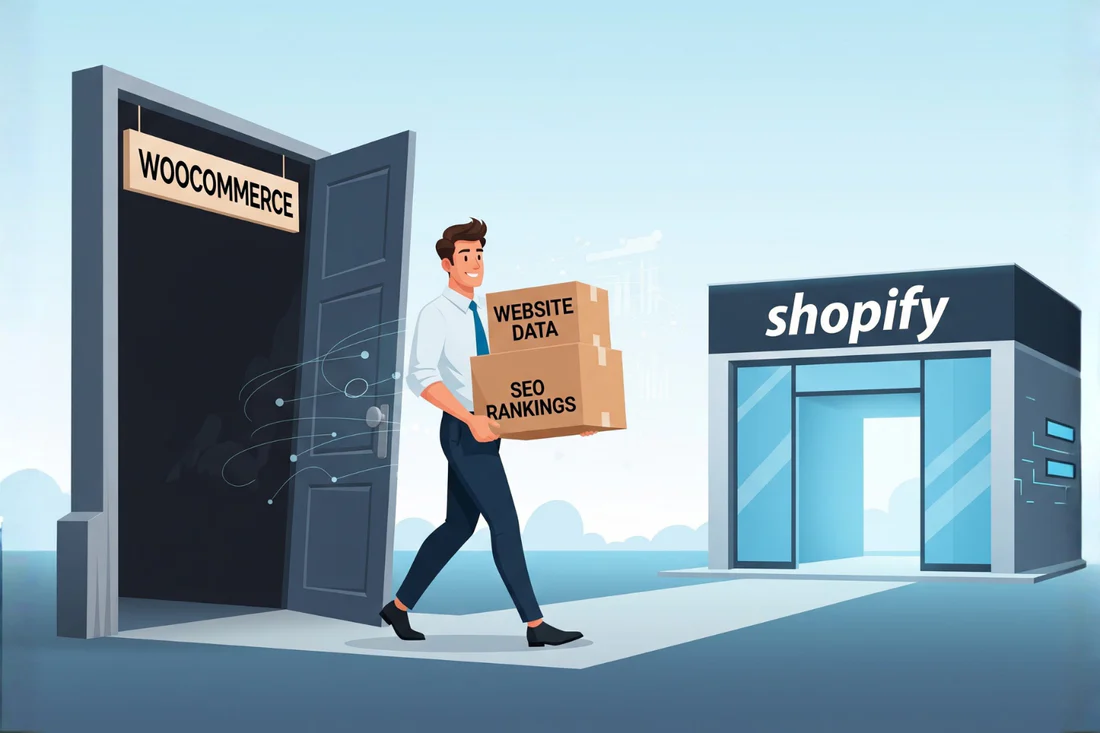
Moving an established online store from one platform to another is a significant technical operation. If you run a business on Shopify and have decided to switch to the open source flexibility of WordPress with WooCommerce, the primary concern is search engine visibility. You have spent years building domain authority and earning backlinks. The fear of seeing that traffic drop to zero overnight is valid.
This Shopify to WordPress migration guide explains the technical process required to transfer your data while preserving the organic search equity you have built. It is about convincing Google that your store has simply renovated its house, not moved to a new address permanently.
Why Moving from Shopify to WordPress Can Be Risky for SEO
Search engines rely on consistency and historical data. When you change the underlying code of your site, you disrupt signals that Google uses to trust your pages. Understanding these specific risks is the first step in mitigating them.
Different URL Structures
Shopify enforces a rigid URL structure. Product pages always contain /products/ and collections always contain /collections/. When you move Shopify website to WordPress, you gain full control over permalinks. While this freedom is a benefit of WordPress, it creates a major risk. If you change the URL from /products/blue-cotton-shirt to /shop/clothing/blue-shirt, Google will see this as a completely new page with zero history. The ranking power from the old URL will not automatically transfer.
Lost Metadata and Image Links
Shopify stores SEO data like meta titles and descriptions in native fields. During migration, if data is not mapped correctly, you can end up with generic page titles. Furthermore, Shopify uses a specific Content Delivery Network for images. If you re-upload images to WordPress, the image URLs change entirely. This means you lose any traffic from Google Image Search, which can be substantial for product-based businesses.
Broken Backlinks
This is the most damaging consequence. Other websites and blogs have linked to your Shopify product pages. These backlinks boost your domain rating. When you change platforms without proper redirects, anyone clicking those links hits a “404 Not Found” error. When Google encounters too many 404s, it interprets the site as poorly maintained, leading to a decline in overall rankings.
Key Steps to Protect Your Rankings During Migration
The difference between a smooth transition and an SEO disaster lies in the preparation before you install WordPress. You must create a map of your digital assets.
Map Old URLs to New URLs
Before you migrate Shopify to WordPress, export a complete list of every active URL on your current store. Use a spreadsheet with two columns: Column A is the exact Shopify URL and Column B is the target WordPress URL. In a perfect migration where you minimize risk, configure WordPress permalinks to mimic Shopify exactly by setting the product base to /products/. If you must change the structure, this spreadsheet is your non-negotiable checklist.
Set Up 301 Redirects
A 301 redirect is a permanent instruction that tells browsers and search engines the content has moved. This is the only correct way to transfer SEO equity. Using your URL mapping spreadsheet, implement these redirects on the WordPress server. Do not rely on a generic redirect that sends every 404 to the homepage. Google views that as a soft 404 and it does not pass ranking signals. Each specific old Shopify product URL must point directly to the corresponding new WordPress product URL.
Test on a Staging Site First
Never perform a migration on a live domain. Set up a temporary staging environment to install WordPress and import all data. This allows you to verify products look correct, images load, and categories are organized. More importantly, it allows you to run a crawler on the staging site to identify internal broken links before the public sees them. A staging environment is also the safest place to configure a wordpress speed optimization service to ensure the new WooCommerce installation loads as fast as Shopify did.
How to Move Products and Content Safely
The actual transfer of data requires careful handling. Several third-party tools and plugins are designed specifically for a Shopify to WooCommerce migration. These tools connect to the Shopify API and pull down products, variants, inventory, and customers.
When moving images, use a plugin that imports images directly into the WordPress Media Library and updates the image source code within the product description. This prevents “hotlinking,” which occurs when your WordPress site tries to load images still hosted on Shopify servers. Hotlinked images break the moment you cancel your Shopify subscription. Ensure all image alt text is preserved during import. Additionally, if you used the Shopify blog feature, those articles must be exported and imported into WordPress Posts while maintaining the original publish date.
Checking Your SEO After the Move
Once the site is live on WordPress and the domain settings are correct, enter a period of strict monitoring. Do not assume everything worked. The first tool to use is Google Search Console. Verify the WordPress version of the site and submit the new XML sitemap generated by an SEO plugin.
After submitting the sitemap, monitor the “Coverage” report for any spike in 404 errors. If errors appear, a redirect was missed or a URL was formatted incorrectly. Use a crawling tool to simulate how Google sees the site. Check that all canonical tags point to the correct WordPress URLs. During this initial phase, you might notice slower load times due to the new server. Engaging a wordpress speed optimization service at this stage helps stabilize Core Web Vitals, which are direct ranking factors.
Long-Term Ranking Protection
Surviving the first week without a traffic drop is a win, but the work continues. For several months, monitor the “Links” report in Google Search Console. This shows which external websites are still linking to your old domain structure. If a high authority backlink bounces through a 301 redirect, contact the website owner to request an update to the direct WordPress URL. Direct links are slightly stronger than redirected links.
Ensure your WordPress hosting environment is robust. Unlike Shopify’s managed infrastructure, WordPress puts the burden of server performance on you. A site that loads quickly will always retain traffic better. A professional wordpress speed optimization service can identify bottlenecks like unoptimized images or bloated database queries leftover from the migration.
Conclusion
Moving from Shopify to WordPress offers long-term benefits in customization and cost control, but the transition is a period of vulnerability for search rankings. The key is meticulous attention to URL structure and redirect implementation. By mapping every page, testing in a private environment, and monitoring Google Search Console after launch, you can switch platforms without erasing your store’s history in Google’s eyes. The process requires precision, but a stable, high-ranking WordPress store is the achievable result.
Author Bio:
Hi, I am Alex Carter, a WordPress specialist and content strategist at WordSuccor, a leading WordPress development company. I focus on custom development, plugin solutions, and performance optimization to help businesses build fast and scalable websites.